Configuring Google Ads

Learn how to connect and export data from your Google Ads accounts with SyncRange.

Overview

Google Ads provides valuable data about your advertising campaigns and performance. By connecting your Ads accounts, you can export this data to Google Sheets for further analysis, reporting, and optimization.

Prerequisites

Before you can configure Google Ads exports, make sure you have:

Adding Google Ads Accounts

To export data from Google Ads, you first need to select which advertising accounts you want to connect:

  1. Access the Google Integration Dashboard

    From your account dashboard, navigate to Connections > Google Integration.

  2. Find the Google Ads Section

    In the Google Integration dashboard, locate the Google Ads section.
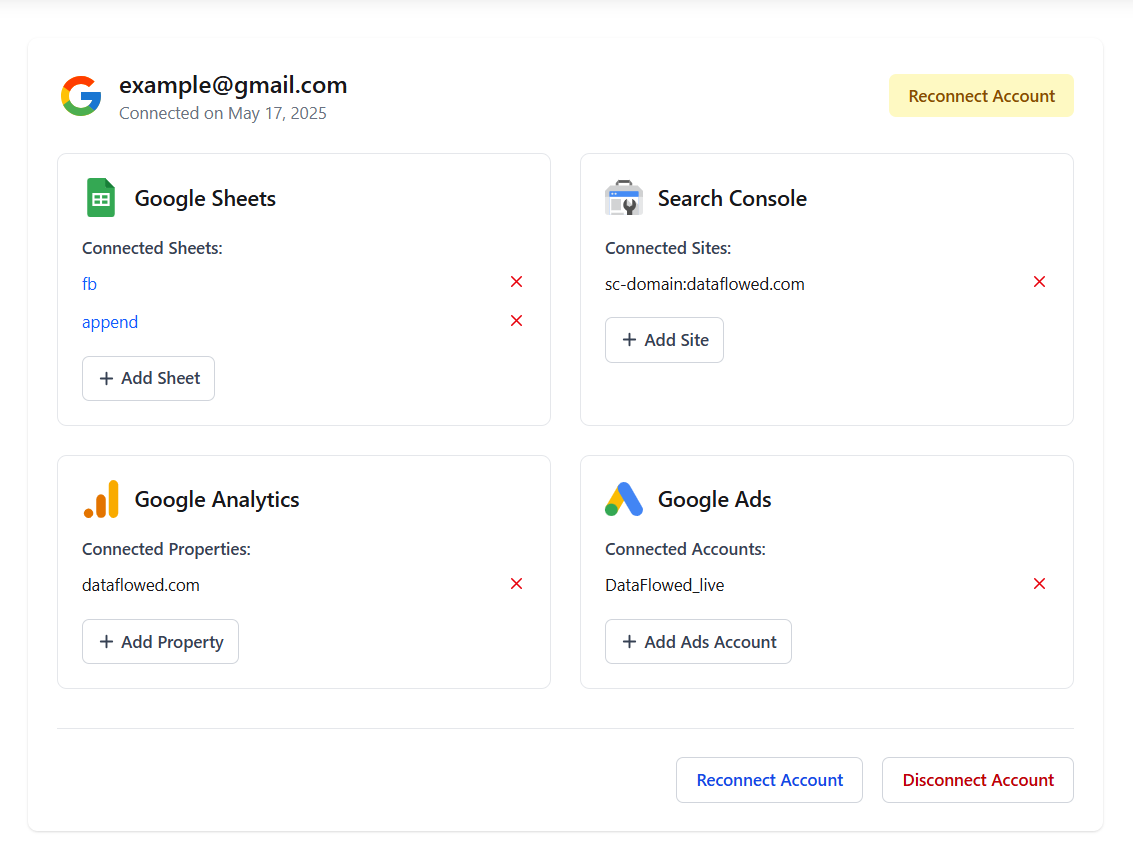
    Google Ads Section

    The Google Ads section in the Google Integration dashboard

  3. Add an Ads Account

    Click the "Add Ads Account" button to view available accounts.

  4. Select an Account

    You'll see a list of Google Ads accounts that you have access to. For each account, you can see:
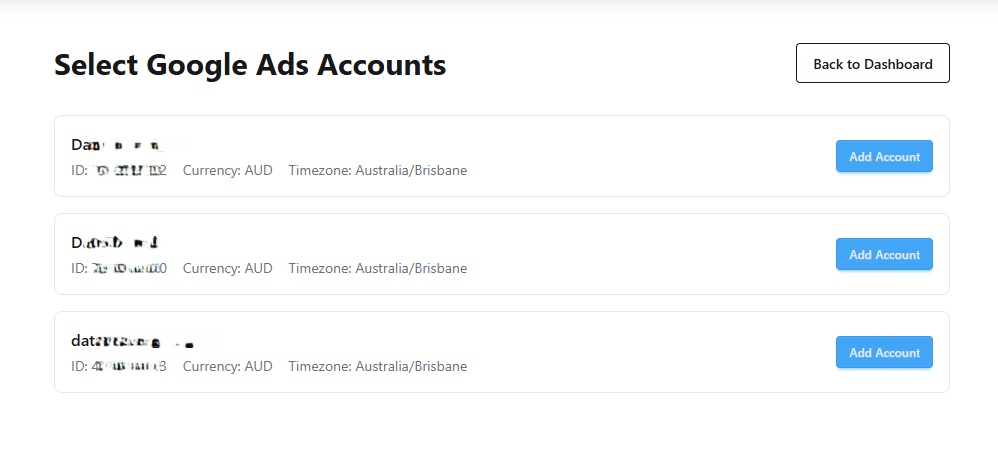
    • Account name (or ID if no name is set)
    • Account ID
    • Currency used in the account
    • Time zone of the account
    Select Google Ads Account

    The account selection page showing available Google Ads accounts

  5. Confirm Your Selection

    Click the "Add Account" button next to the account you want to connect.

Note

You can only select accounts that you have access to in Google Ads. If you don't see your account, make sure you have the correct permissions and that you're using the same Google account that has access to your Ads accounts.

Managing Connected Accounts

After connecting Google Ads accounts, you can manage them from the Google Integration dashboard:

Viewing Connected Accounts

All your connected Ads accounts are listed in the Google Ads section of the Google Integration dashboard. For each account, you can see:

  • The account name or ID
  • The currency and time zone
  • An option to remove the account from your integration

Removing an Account

To remove a Google Ads account from your integration:

  1. Find the account in the Google Ads section of the dashboard
  2. Click the "X" or "Remove" icon next to the account
  3. Confirm the removal when prompted

Important

Removing an account will not affect your Google Ads account, but any exporters using this account will stop working. You'll need to update those exporters to use a different account.

Creating Google Ads Exports

Once you've connected your Ads accounts, you can create exports to send data to Google Sheets:

  1. Navigate to the Export Builder from your dashboard
  2. Click "Create New Export"
  3. Select "Google Ads" as the data source
  4. Choose the Ads account you want to export data from
  5. Select a Google Sheet as the destination
  6. Configure the export settings (see below)
  7. Set up a schedule for the export
  8. Click "Create Export" to save your configuration

For detailed instructions on creating exporters, see our Creating Data Exporters guide.

Google Ads Export Settings

When configuring a Google Ads export, you'll have several options to customize what data is exported:

Basic Settings

Configure the fundamental settings for your export:

  • Export Name: A descriptive name to identify your export
  • Date Range: Select the timeframe for your data:
    • Last day
    • Last 7 days
    • Last 30 days
    • Last 90 days

Report Types and Dimensions

Google Ads exports are organized by report type. Each report type has its own dimensions and creates separate tabs in your Google Sheet. The interface uses a tab-based layout where you can configure each report type independently:
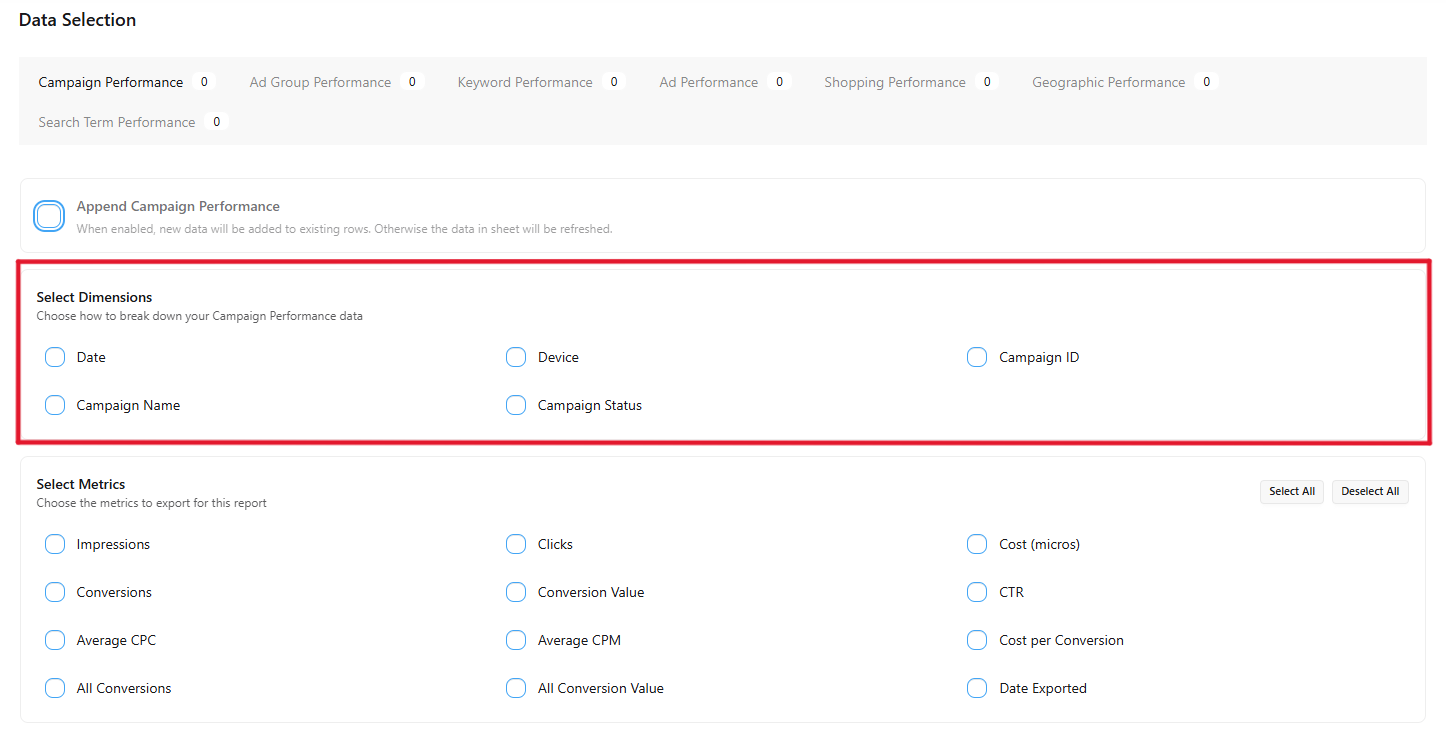
Google Ads Dimension Tabs

The tab interface for configuring different report types

Available report types include:

  • Campaign Performance: Data broken down by campaign
  • Ad Group Performance: Data broken down by ad group
  • Keyword Performance: Data for your keywords
  • Ad Performance: Data for individual ads
  • Shopping Performance: Product-level data for Shopping campaigns
  • Geographic Performance: Data by country and region (country names are shown, not IDs)
  • Search Term Performance: Search terms that triggered your ads (Search campaigns only)
  • Performance Max Search Terms: Search terms for Performance Max campaigns

For each report type tab, you can:

  • Time Granularity: Choose how to break down data within the selected date range—Daily (one row per day), Weekly, Monthly, or Total (aggregated for the whole period)
  • Campaign Filter (optional): For most report types, you can limit the export to specific campaigns. Use the Campaigns dropdown to select one or more campaigns; leave all unchecked to export all campaigns. Not available for Geographic Performance or Shopping Performance.
  • Select Dimensions: Choose which dimensions to include (e.g., campaign name, ad group, date)
  • Select Metrics: Choose which performance metrics to include
  • Set Data Handling: Choose whether to append new data or replace existing data

Search Terms vs Performance Max

Search Term Performance includes only Search campaigns. For Performance Max campaign search terms, use the Performance Max Search Terms report type.

Campaign Filter

For Campaign Performance, Ad Group Performance, Keyword Performance, Ad Performance, Search Term Performance, and Performance Max Search Terms, you can optionally filter to specific campaigns:

  • All campaigns (default): Leave all campaigns unchecked to export data from every campaign in your account
  • Specific campaigns: Use the Campaigns dropdown to select one or more campaigns. Only data from those campaigns will be exported

The campaign filter is not available for Geographic Performance or Shopping Performance reports. When you select campaigns that have no data for the date range, SyncRange will still create rows with zero metrics and the correct campaign names.

Metrics Selection

For each report type, you can select which metrics to include in your export:
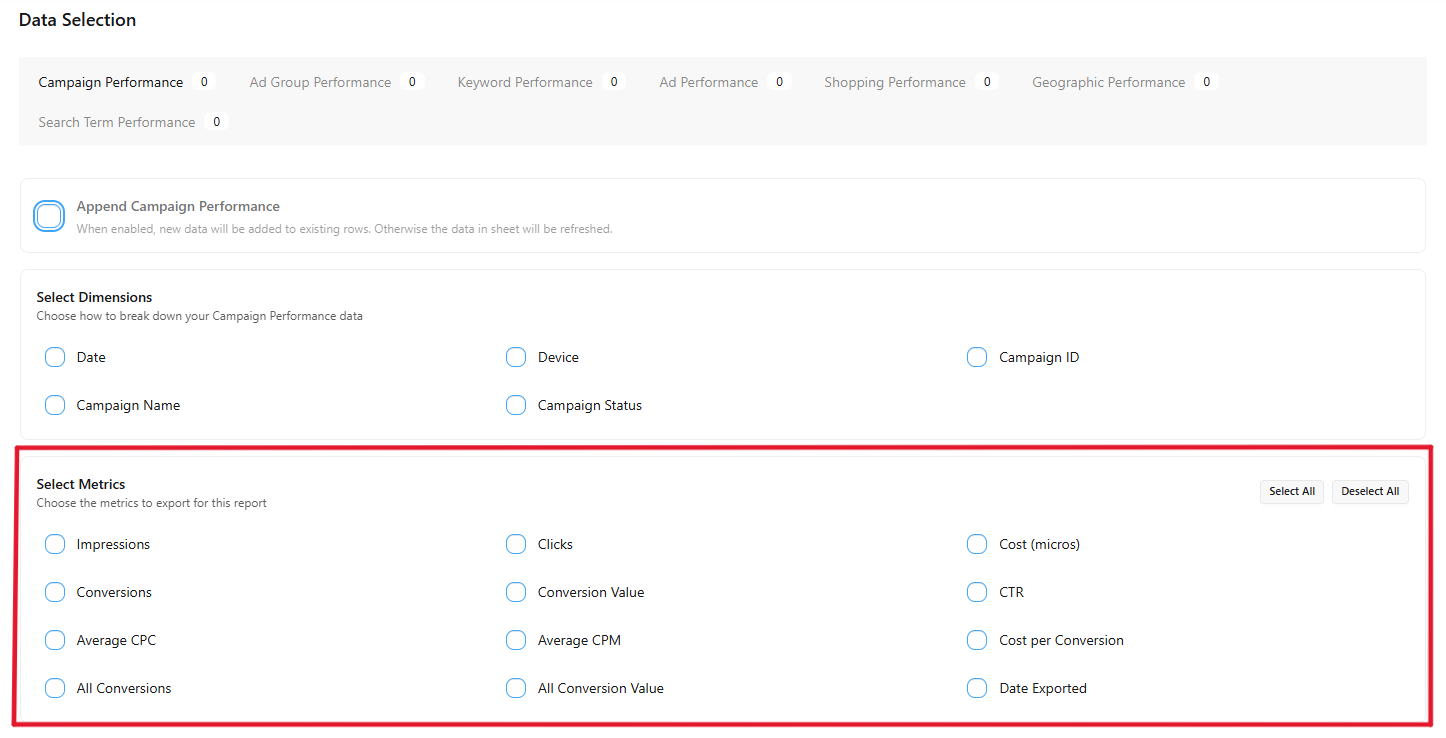
Google Ads Metrics Selection

The metrics selection interface for a report type

Available metrics include:

  • Impressions: How many times your ads were shown
  • Clicks: How many times users clicked on your ads
  • CTR (Click-Through Rate): The percentage of impressions that resulted in clicks
  • Cost: How much you spent on your ads (displayed in your account currency)
  • Average CPC: The average cost per click (displayed in your account currency)
  • Conversions: The number of conversions generated
  • Conversion Rate: The percentage of clicks that resulted in conversions
  • Cost Per Conversion: The average cost for each conversion
  • ROAS (Return On Ad Spend): The return on your advertising investment

Cost and CPC metrics are automatically converted to human-readable currency values. You can use the "Select All" and "Deselect All" buttons to quickly manage your metric selections.

Complete Time Coverage

When using Daily, Weekly, or Monthly granularity, SyncRange includes rows for every period in your selected date range—even when there is no activity. Periods with no impressions or clicks will show zero values for all metrics, so your data has no gaps and is ready for charts and trend analysis.

Data Handling

For each report type tab, you can choose how to handle the exported data:

  • Replace (default): Each export run will clear existing data and replace it with new data
  • Append: Each export run will add new data rows without removing existing data

The append option is particularly useful for building historical datasets. When enabled, new data will be added to existing rows rather than replacing them.

Understanding Tab Badges

Each report type tab displays a badge showing how many metrics are currently selected. A zero indicates that the report type will not be included in the export.

Best Practices

  • Focus on Key Performance Indicators: Select metrics that directly relate to your advertising goals (e.g., conversions, ROAS)
  • Use Multiple Report Types: Enable several report types to analyze your campaigns from different angles (campaign, ad group, geographic, search terms, etc.)
  • Choose the Right Granularity: Use Daily for detailed trend analysis, Weekly or Monthly for high-level summaries, or Total for aggregated performance
  • Regular Scheduling: Set up daily or weekly exports to track performance trends over time
  • Combine with Other Data: Use Google Sheets to combine your Ads data with data from Analytics or other sources for a complete picture
  • Create Custom Calculations: Use Google Sheets formulas to create custom metrics like profit margin or lifetime value

Troubleshooting

Account Not Appearing

If your Google Ads account doesn't appear in the selection list:

  • Verify you're using the same Google account that has access to the Ads account
  • Check that you have sufficient permissions in the Google Ads account
  • Ensure the account is active and not suspended
  • Try reconnecting your Google account with Ads permissions

No Data in Exports

If your exports aren't showing any data:

  • Check that your campaigns were active during the selected date range
  • Verify that you've selected at least one metric for each report type you want to export
  • Ensure your account has had impressions or clicks during the selected period
  • For Search Term or Performance Max Search Terms reports, confirm you have the relevant campaign types (Search or Performance Max)
  • For new campaigns, allow 24-48 hours for data to become available

Data Discrepancies

If you notice differences between exported data and Google Ads reports:

  • Check that the date ranges match exactly
  • Be aware that Google Ads may have slight delays in reporting data
  • Verify that you're looking at the same metrics and dimensions
  • Remember that time zone settings can affect how data is reported

Related Documentation

Stop Juggling Dashboards. Start Growing Get your data flowing today, free plan available.