Learn how to set up and manage Google Sheets as destinations for your data exports with SyncRange.
Overview
Google Sheets serves as the destination for all your exported data. Before creating exporters, you'll need to connect at least one Google Sheet to your account. This guide explains how to add and manage Google Sheets for your data exports.
Prerequisites
Before you can configure Google Sheets, make sure you have:
Granted Google Sheets access permissions to your account
Adding a Google Sheet
There are two ways to add a Google Sheet to your account:
Method 1: Create a New Sheet
Create a brand new Google Sheet directly from our platform:
From the Google Integration dashboard, find the Google Sheets section
Click "Add Sheet" to open the sheet selection dialog
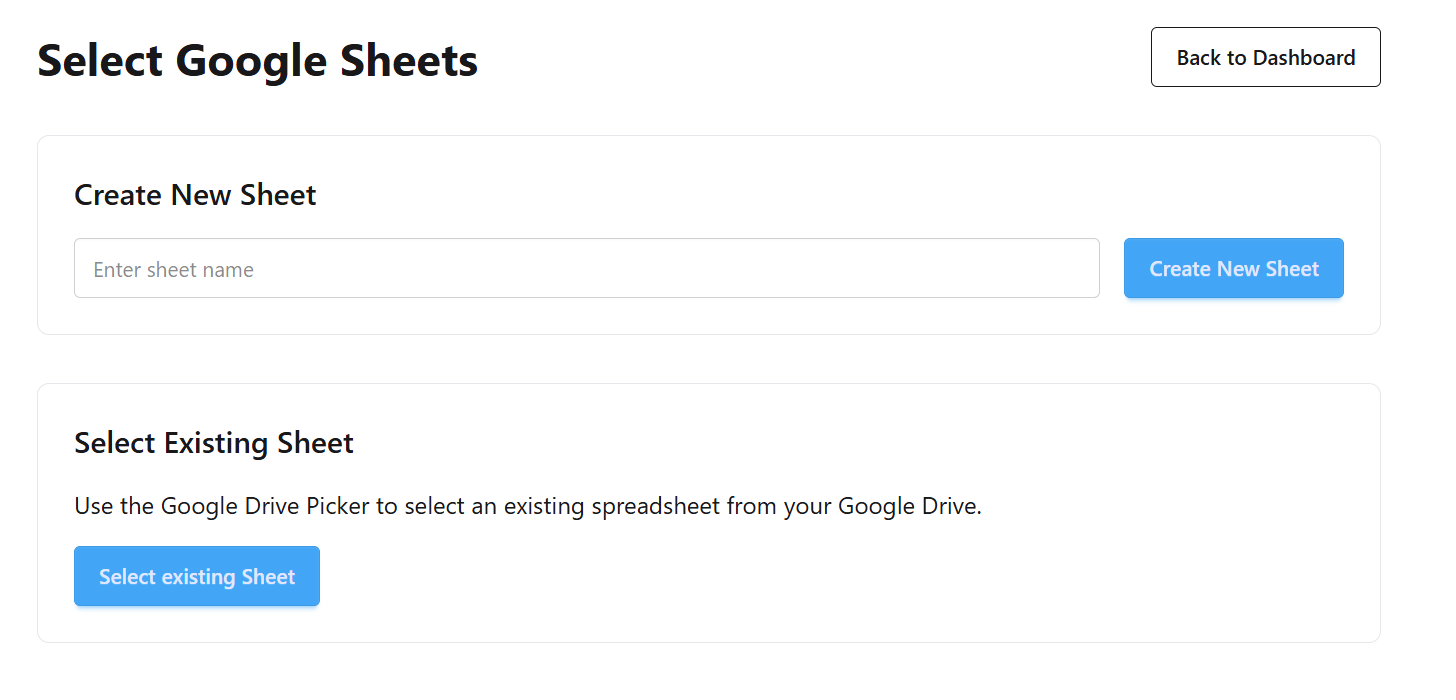
In the "Create New Sheet" section, enter a name for your new spreadsheet
Click "Create New Sheet"
The form for creating a new Google Sheet
A new Google Sheet will be created in your Google Drive with the specified name, and it will automatically be connected to your account.
Method 2: Select an Existing Sheet
Connect an existing Google Sheet from your Google Drive:
From the Google Integration dashboard, find the Google Sheets section
Click "Add Sheet" to open the sheet selection dialog
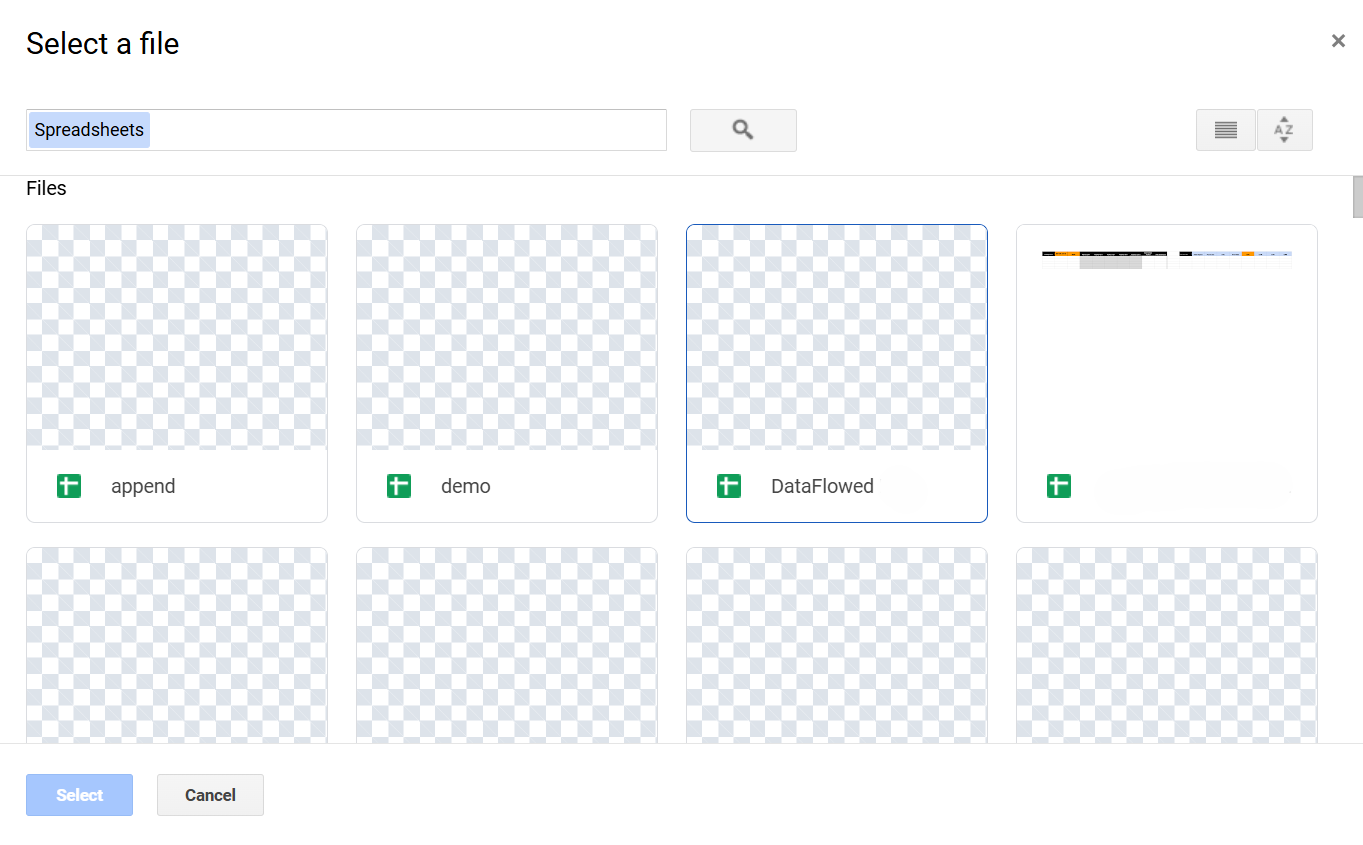
Click "Select existing Sheet" or "Open Google Drive Picker"
Browse your Google Drive and select the spreadsheet you want to use
Click "Add Selected Sheet" to confirm
The Google Drive Picker for selecting an existing spreadsheet
Note
You can only select spreadsheets that you own or have edit access to. If you don't see your spreadsheet, check your permissions in Google Drive.
Managing Connected Sheets
After connecting Google Sheets, you can manage them from the Google Integration dashboard:
Viewing Connected Sheets
All your connected sheets are listed in the Google Sheets section of the Google Integration dashboard. For each sheet, you can see:
The sheet name
A link to open the sheet directly in Google Sheets
An option to remove the sheet from your account
Removing a Sheet
To remove a Google Sheet from your account:
Find the sheet in the Google Sheets section of the dashboard
Click the "X" icon next to the sheet name
Confirm the removal when prompted
Important
Removing a sheet will not delete it from your Google Drive, but any exporters using this sheet will stop working. You'll need to update those exporters to use a different sheet.
Sheet Structure and Organization
Understanding how data is organized in your Google Sheets can help you create more effective exports:
Sheet Tabs
When you export data, each export creates or updates specific tabs (worksheets) within your Google Sheet:
Each export dimension typically creates a separate tab
Tab names are automatically generated based on the export configuration
You can have multiple exporters writing to different tabs in the same Google Sheet
Data Handling
When configuring an export, you can choose how data is handled in each tab:
Replace: Each export run will clear the existing data and replace it with new data
Append: Each export run will add new data rows without removing existing data
Pro Tip
For better organization, consider using separate Google Sheets for different types of data (e.g., one for analytics data, another for advertising data).
Best Practices
Sheet Permissions: Ensure your team members have appropriate access to the Google Sheets where data is exported
Sheet Size: Be mindful of Google Sheets' limits (10 million cells maximum). For very large datasets, consider using multiple sheets
Naming Conventions: Use clear, descriptive names for your sheets to easily identify their purpose
Backup: For critical data, consider setting up periodic backups of your Google Sheets
Formulas: You can add your own formulas, charts, and pivot tables to analyze the exported data
Troubleshooting
Sheet Not Appearing
If your sheet doesn't appear in the Google Drive Picker:
Verify you're using the same Google account that has access to the sheet
Check that the sheet is a Google Sheet (not an Excel file or other format)
Ensure you have edit permissions for the sheet
Export Errors
If exports to your sheet are failing:
Check that your Google account is still connected and authorized

 Install on Shopify