Configuring Shopify Exports

Learn how to set up and customize data exports from your Shopify store to Google Sheets with SyncRange.

Overview

After connecting your Shopify store, you can configure exports to send your e-commerce data to Google Sheets. This allows you to analyze sales trends, monitor inventory, track customer behavior, and create custom reports based on your store's data.

Prerequisites

Before configuring Shopify exports, make sure you have:

Creating a Shopify Export

Follow these steps to create a new Shopify export:

  1. Navigate to the Export Builder

    From your dashboard, go to "Export Builder" and click "Create New Export".

  2. Select Shopify as the Data Source

    Choose "Shopify" from the list of available data sources.

  3. Select Your Shopify Store

    If you have multiple Shopify stores connected, select the store you want to export data from.

  4. Choose a Google Sheet

    Select the Google Sheet where you want to export your Shopify data.

  5. Configure Export Settings

    Set up the export configuration as described in the sections below.

    Shopify Export Configuration

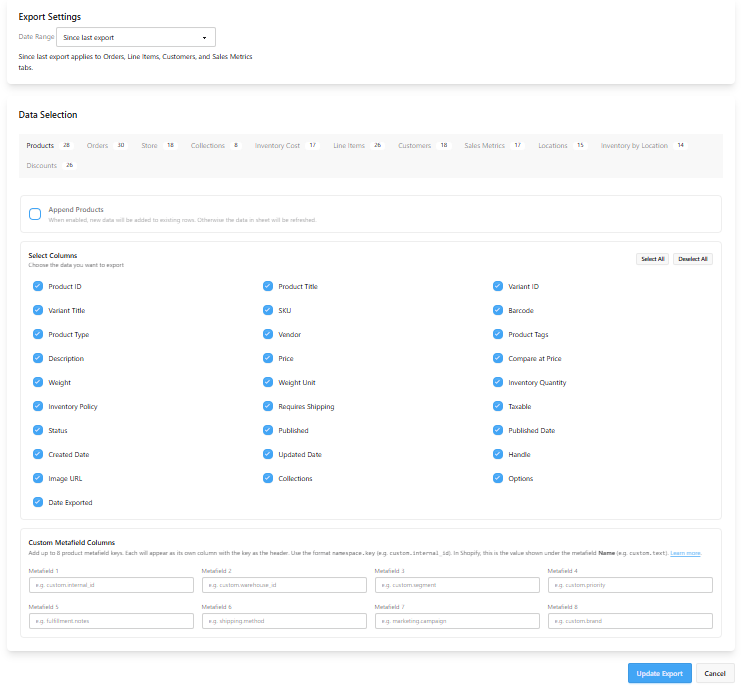
    The Shopify export configuration screen

  6. Save Your Export

    Click "Create Export" to save your configuration and create the export.

Export Configuration Options

When configuring a Shopify export, you have several options to customize what data is exported and how it's organized:

Basic Settings

Configure the fundamental settings for your export:

  • Date Range: Choose how much historical data to include. You can select from a variety of preset options:
    • Today: Export data from today only
    • Yesterday: Export data from yesterday only
    • Last 3 days: Export data from the past 3 days
    • Last 7 days: Export data from the past week
    • Last 14 days: Export data from the past 2 weeks
    • Last 28 days: Export data from the past 4 weeks
    • Last 30 days: Export data from the past month (default)
    • Last 90 days: Export data from the past quarter
    • Last 6 months: Export data from the past 6 months
    • Last year: Export data from the past year (365 days)
    • This month: Export data from the start of the current month to today
    • Last month: Export data from the entire previous month
    • This quarter: Export data from the start of the current quarter to today
    • Maximum: Export all available historical data (up to 2 years)

    The date range determines which orders and data will be included in your export. Choose a range that matches your reporting needs - shorter ranges are faster to export, while longer ranges provide more historical context.

Data Tabs

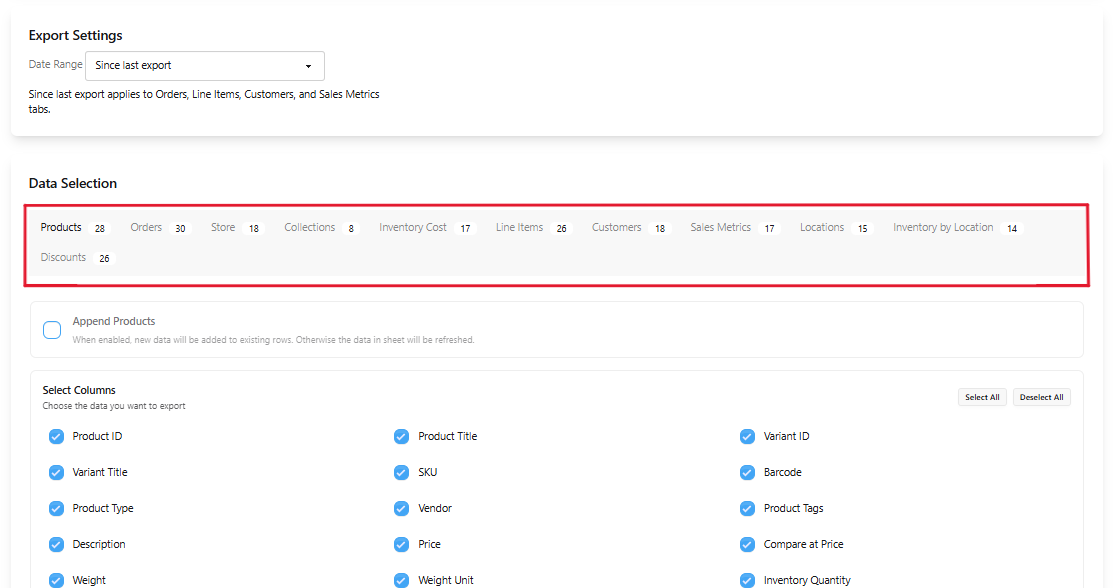
Shopify exports are organized by data types, with each type creating a separate tab in your Google Sheet. The interface uses a tab-based layout where you can configure each data type independently:

Shopify Data Tabs

The tab interface for configuring different data types

Available data tabs include:

  • Products: Information about your product catalog
  • Orders: Details about customer orders
  • Store: General information about your Shopify store
  • Inventory: Current inventory levels for your products
  • Line Items: Individual items within orders
  • Customers: Information about your customers
  • Sales Metrics: Aggregated sales performance data
  • Locations: Information about your store locations
  • Inventory Locations: Inventory data broken down by location

For each data tab, you can:

  • Enable/Disable: Choose whether to include this data type in your export by selecting columns
  • Set Data Handling: Choose whether to append new data or replace existing data
  • Select Columns: Choose which specific data fields to include for this data type

Column Selection

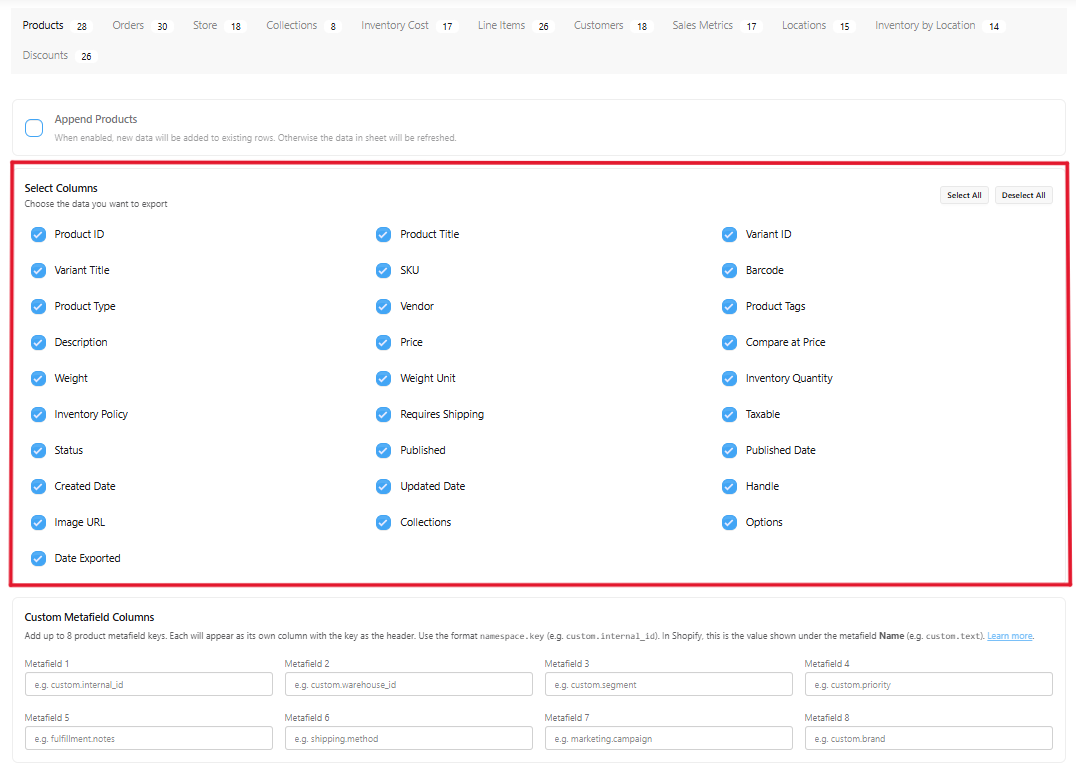
For each data tab, you can select which columns (fields) to include in your export:

Shopify Column Selection

The column selection interface for a data tab

Each data tab has its own set of available columns. Some common columns include:

Data Tab Example Columns
Products ID, Title, Description, Vendor, Product Type, Tags, Published, Created At, Updated At, Variants
Orders ID, Name, Email, Financial Status, Fulfillment Status, Total Price, Subtotal, Taxes, Shipping, Discount, Created At
Customers ID, First Name, Last Name, Email, Phone, Orders Count, Total Spent, Tags, Created At
Inventory Product ID, Variant ID, SKU, Available, On Hand, Committed, Incoming

You can use the "Select All" and "Deselect All" buttons to quickly manage your column selections.

Data Handling

For each data tab, you can choose how to handle the exported data:

  • Replace (default): Each export run will clear existing data and replace it with new data
  • Append: Each export run will add new data rows without removing existing data

The append option is particularly useful for building historical datasets over time. When enabled, new data will be added to existing rows rather than replacing them.

Pro Tip

Use the append option for data you want to track over time (like orders or sales metrics), and use replace for data that represents current state (like inventory or product details).

Best Practices

  • Start Simple: Begin with just one or two data tabs and a few essential columns
  • Focus on Key Data: Select only the columns you actually need for your analysis
  • Consider Sheet Size: Be mindful that exporting too many columns or rows can make your Google Sheet slow or hit size limits
  • Use Appropriate Date Ranges: Choose a date range preset that matches your reporting needs. For daily reports, use "Today" or "Yesterday". For weekly analysis, use "Last 7 days" or "Last 14 days". For monthly reports, use "Last 30 days" or "This month". For comprehensive historical analysis, use "Last 90 days", "This quarter", or "Maximum"
  • Append Strategically: Use append for historical data tracking, but be aware that it will increase your sheet size over time
  • Create Multiple Exports: Instead of one large export with everything, create separate focused exports for different purposes
  • Check Your Exports: After creating an export, run it manually and verify the data before setting up automation

Troubleshooting

Missing Data

If your export is missing expected data:

  • Verify that you've selected the appropriate columns for the data tab
  • Check if the date range is appropriate for the data you're looking for
  • Ensure that the data exists in your Shopify store
  • Check if you have the necessary permissions to access that data

Export Errors

If your export fails with errors:

  • Check the export logs for specific error messages (see Viewing Export Logs)
  • Verify that your Shopify connection is still active
  • Check if your Google Sheet is accessible and has not been deleted
  • Try reducing the number of columns or the date range if you're hitting API limits

Performance Issues

If your exports are running slowly or timing out:

  • Reduce the number of columns you're exporting
  • Choose a shorter date range (e.g., "Last 7 days" instead of "Maximum")
  • Split large exports into multiple smaller exports
  • For stores with large catalogs or high order volumes, focus on the most recent or most important data

Related Documentation

Stop Juggling Dashboards. Start Growing Get your data flowing today, free plan available.