
How to Export Google Ads to Google Sheets Automatically
There are two main ways to do this: a manual export from Google Ads or using a tool like SyncRange to automate the process. I'll walk through both approaches so you can choose the one that fits your needs.
Manual Export of Google Ads Data
Google Ads has a built-in export feature that lets you download campaign data as a CSV file. This is quick and requires no additional tools. It’s best for occasional exports or one-off reports. To export manually:
- Log in to Google Ads. Go to ads.google.com and sign in with your Google account.
- Open the report you want. In the left-hand menu, click Campaigns (or whichever tab holds the data you need, like Ad groups or Keywords). Select the date range for your report at the top right (for example, “Last 30 days”).
- Customise the columns. Above the data table, click the Columns icon (it looks like a bar chart) and choose Modify columnssupport.google.com. Here you can add or remove metrics (such as clicks, impressions, cost, or conversions) to match the analysis you want. After making changes, click Apply.
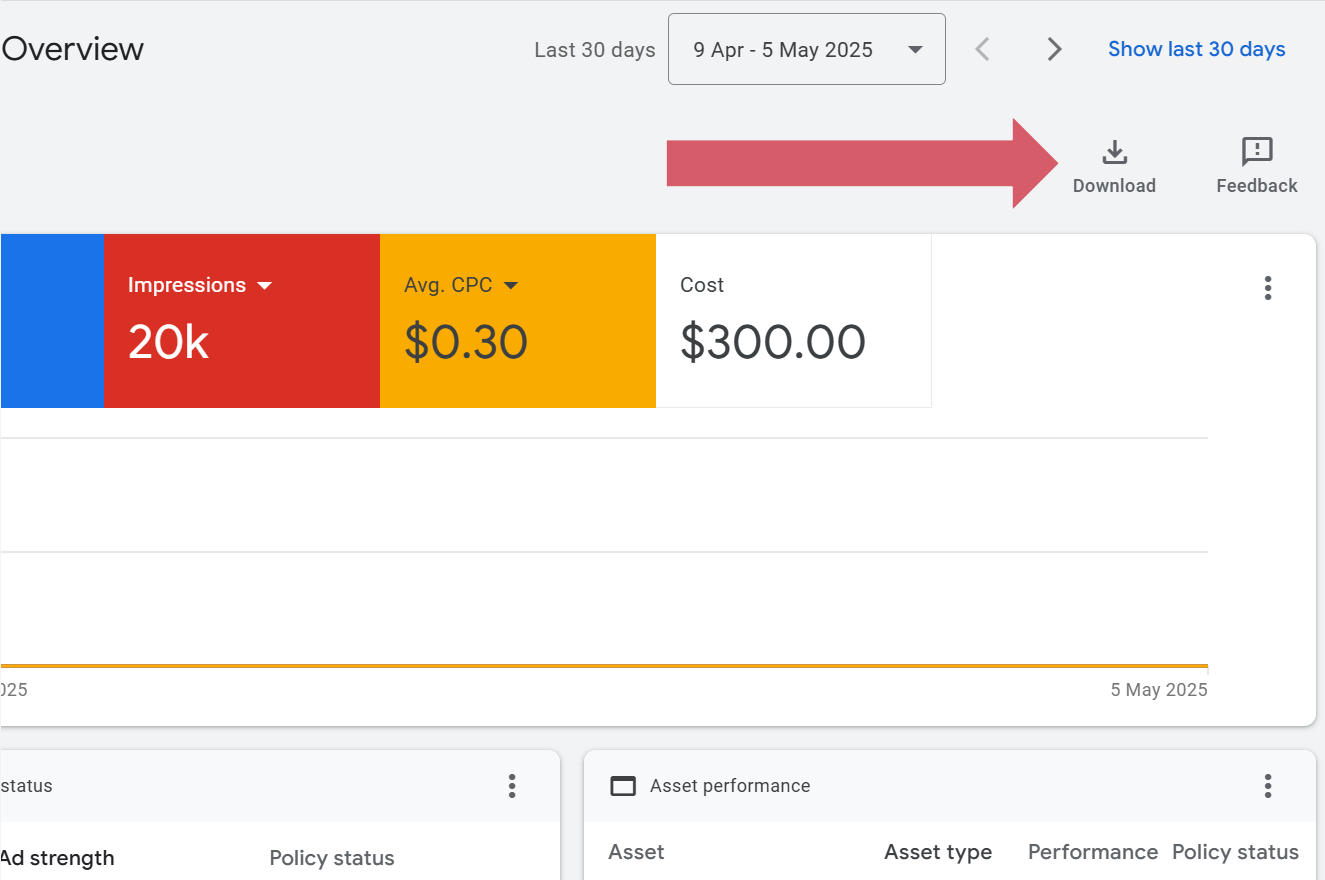
- Download the data. Look for the Download icon (a downward arrow ⤓) above the table. Click it, and in the menu that appears, select CSV (CSV for Excel). Then click Download. This saves a CSV file of your selected data to your computer.
- Open the CSV in Google Sheets. In Google Sheets, go to File > Import. Upload the CSV file you just downloaded. When prompted, choose to insert the data into a new sheet (so it doesn’t overwrite any existing sheets). You can usually leave the separator as “Detect automatically.” Then click Import. The Google Ads data will now appear in a new sheet with columns for each metric you exported.
This manual export is straightforward and doesn’t require any setup, but it only captures data up to the time you downloaded it. If you need to update your sheet later (for example, with yesterday’s data), you’d repeat these steps. For one-time reports or occasional checks, that may be fine.
However, if you want up-to-date Ads data in Sheets without re-exporting by hand, consider an automated approach.
Automate Google Ads Exports with SyncRange
Instead of repeating manual exports, you can use SyncRange to sync Google Ads to Google Sheets automatically. SyncRange lets you schedule exports, so your sheet is always up-to-date with the latest ad metrics. This saves time and avoids manual errors: once it’s set up, you don’t have to download CSVs again.
Benefits of automation: With SyncRange you can set hourly, daily, weekly or custom refreshes so your Google Ads data stays fresh. You can pull multiple account’s data into one sheet, automatically append new rows for historical tracking, and combine Ads metrics with other data sources.
How to set it up:
- Connect your Google Ads account: In SyncRange, go to Connections > Google Integration and find the Google Ads section. Click Add Ads Account and authorise SyncRange to access your Google Ads. You’ll see a list of your Google Ads accounts (showing account names and IDs) – click Add Account next to the one you want.
- Connect your Google Sheet: Also in Google Integrations, Authorise SyncRange to access your Google Sheets, then either create a new Sheet or select an existing one as the destination for your data.
- Create a new export: Now go to the Export Builder in the SyncRange dashboard. Click Create New Export. For Data Source, choose your Google Ads account. Then choose the Google Sheet you want to receive the data.
- Schedule the export: Finally, set how often to run the export (for example, daily or weekly). You can also run it immediately to populate the sheet for the first time from the dashboard.
- Configure the export: Give your export a name. Select the date range of data to include (for example “Last 30 days” or a custom range). Then you’ll see one or more dimensions you can export. You can also choose if each run should replace the data or append new rows (appending is useful to build up a history).
- When everything looks right, click Create Export.
Once set up, SyncRange will automatically pull your Google Ads data and load it into the Google Sheet on your schedule. For example, you could have daily campaign performance data in one tab and daily keyword performance in another. You won’t need to log into Google Ads again to update the sheet – SyncRange handles it.
Related posts
- How to Export Meta (Facebook) Ads to Google Sheets: Manual and Automated Methods Exporting your Meta (Facebook) Ads data to Google Sheets can help you analyze campaign performance, build custom marketing reports, and combine your ad metrics with your other business data.
- How to Export Google Search Console Data to Google Sheets Explore 3 methods to get your Google Search Console data to Google Sheets.
- How to Connect TikTok Ads to Google Sheets and BigQuery Learn how to connect your TikTok ads data to Google Sheets and BigQuery with no coding required!
 Install on Shopify